Connect HubSpot to RegieGO
Bring companies, contacts, and eligible tasks into your workspace. Choose field and owner mappings, then decide when to enable updates back to HubSpot.
Before you begin
- HubSpot sync is available on Free, Pro, and Enterprise plans.
- Sign in to the workspace and HubSpot account you intend to connect. Ask your HubSpot administrator to authorize the app if you cannot approve its access.
- Each workspace connects to one CRM. If another CRM is already connected, review that connection before switching providers.
Connect and configure
- Open Settings → Integrations in your workspace and select HubSpot.
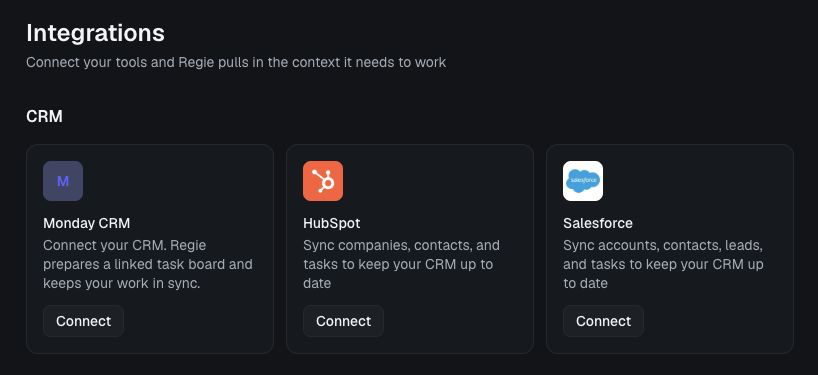
Select Connect on the HubSpot card in the CRM section. - In the Link HubSpot Account dialog, select Connect. A pop-up opens so you can choose the intended HubSpot account and review the requested permissions before approving access. Return to your workspace when authorization finishes.
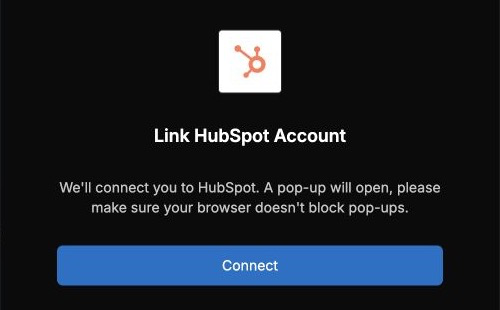
Allow the authorization pop-up to open when you select Connect. - In Configure, map company and contact fields. Complete the required mappings, including company name and contact email. Choose compatible fields for optional and custom mappings.
- Map HubSpot owners to workspace users. Review any unmapped users and assign the mappings you need.
- Open Review & start, check the configuration, and start the initial import. Saving a draft alone does not start synchronization.
- Check the CRM overview and activity screens for progress and errors. A connected account does not mean that the initial import has finished.
Updates back to HubSpot
Use the CRM overview to review and enable updates back to HubSpot. Field mappings describe how fields relate; they do not by themselves enable outbound updates. Eligible edits follow your mappings and synchronization rules. Check activity to confirm delivery to HubSpot.
Manage your connection
Edit field and owner mappings on the CRM mappings page. Saving a change does not automatically remap previously imported records. Use the explicit re-import action when you need to apply mappings to existing records.
To stop the connection, select Disconnect and read the confirmation before proceeding. Reconnecting requires authorization and any setup requested by the application.
Troubleshooting
- Authorization does not finish: confirm the HubSpot account and ask its administrator to review installation access.
- A mapping is rejected: select a compatible writable field and complete all required mappings before starting.
- A record has not synced: check the activity screen for the affected record and error. A saved edit does not confirm delivery to HubSpot.
For help, contact engineering@regie.ai with the step you were completing and the displayed error. Do not include passwords, access tokens, or customer record contents.